ForeverTV
Watch YouTube on a goblin TV inside WoW Forever. Needs the free ForeverTV app for Windows.
Screenshots
What it does
Watch YouTube inside WoW Forever. Put a TV anywhere on your screen, send it a video from your browser with one click, and keep playing while it runs: the video looks like part of the game, and clicks go straight through it to the world.
This addon does nothing on its own. You need:
- this addon,
- the free ForeverTV app for Windows (it sits in the tray and updates itself), and
- optionally the ForeverTV - Play in WoW browser extension for Edge or Chrome, for the one-click button on YouTube. Without it, copy a YouTube link and choose Paste YouTube link in the tray menu.
The game must run windowed or maximized (not exclusive fullscreen).
How it works
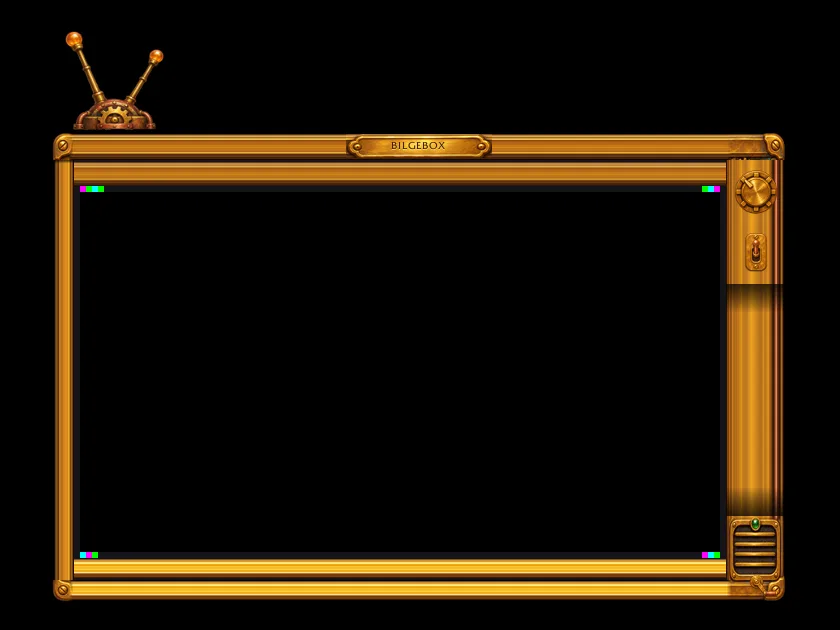
Addons cannot play video, so the addon draws a frame with small markers in its corners, and the app places its own video window exactly over that frame. Move or resize the frame and the video follows. The video lets your clicks through, stays above WoW and hides when WoW is minimized.
- One click from YouTube: the gold TV button in the YouTube player bar, the toolbar icon, or right-click any YouTube link and choose Play in WoW. The video continues in the game from the same second and the browser tab pauses.
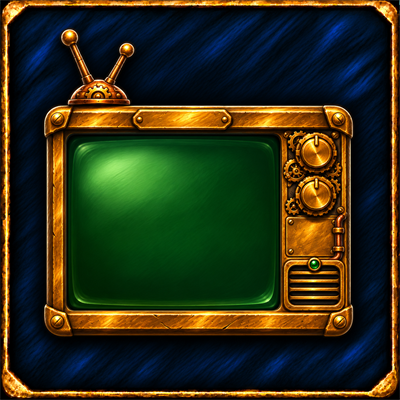
- Goblin TV casing (
/ftv tv): a hand-painted brass and copper set with rabbit ears. Turn the TUNE dial to play or pause, flip the power switch to hide it, and drag the brass crank to resize. - Plain frame if you prefer a clean look, with its own Pause/Play button.
- Works in combat: pause, play, show and hide.
What you should know before you install it
- Nothing sends input to the game. No keys, no clicks, no changes to the game's memory or files. The video is an ordinary Windows window over the game.
- The app reads the screen to find the markers of the frame. Reading the screen from outside the game is the technique pixel bots use. I do not know how Blizzard treats this on WoW Forever. Decide for yourself whether you want to use it.
- Privacy: no accounts, no analytics. The extension talks only to the app on your own computer (127.0.0.1); the app plays the video in a YouTube embed and checks GitHub for updates. Full privacy policy.
- Some videos do not allow embedding; the app tells you when YouTube refuses one.
Commands
| Command | What it does |
|---|---|
/ftv |
Shows or hides the TV |
/ftv tv |
Switches between the goblin TV casing and the plain frame (remembered) |
/ftv pause / /ftv play |
Pauses or resumes the video |
Getting started
- Install this addon and start the ForeverTV app (it goes to the tray).
- In game type
/ftvand put the frame where you want it. - In the tray menu choose Paste YouTube link, or install the extension: in the tray menu choose Pair browser, paste the token in the extension's options and press Save and test.
Changelog
0.1.0 current
Changes
- A TV frame you can place and resize anywhere on the screen; the ForeverTV app for Windows plays the YouTube video exactly inside it, with clicks passing through to the game.
- Optional hand-painted goblin TV casing (
/ftv tv): TUNE dial plays and pauses, the power switch hides the TV, the brass crank resizes it. Remembered between sessions. - Play and pause from the game (
/ftv pause,/ftv play), also in combat. - Send videos with one click from YouTube with the ForeverTV - Play in WoW browser extension, or paste a link in the app's tray menu.
Help and feedback
Questions, bugs and ideas are welcome on the Forever Addons Discord: #help for setting it up, #bug-reports when something is broken (the addon version and the error text help a lot), #feature-requests for ideas.