Forever Taskbar
All your addons in one thin bar on any edge of the screen, like the Windows taskbar: a click does what the minimap button does. Gold, volume, mail, calendar and clock included.
Screenshots

What it does
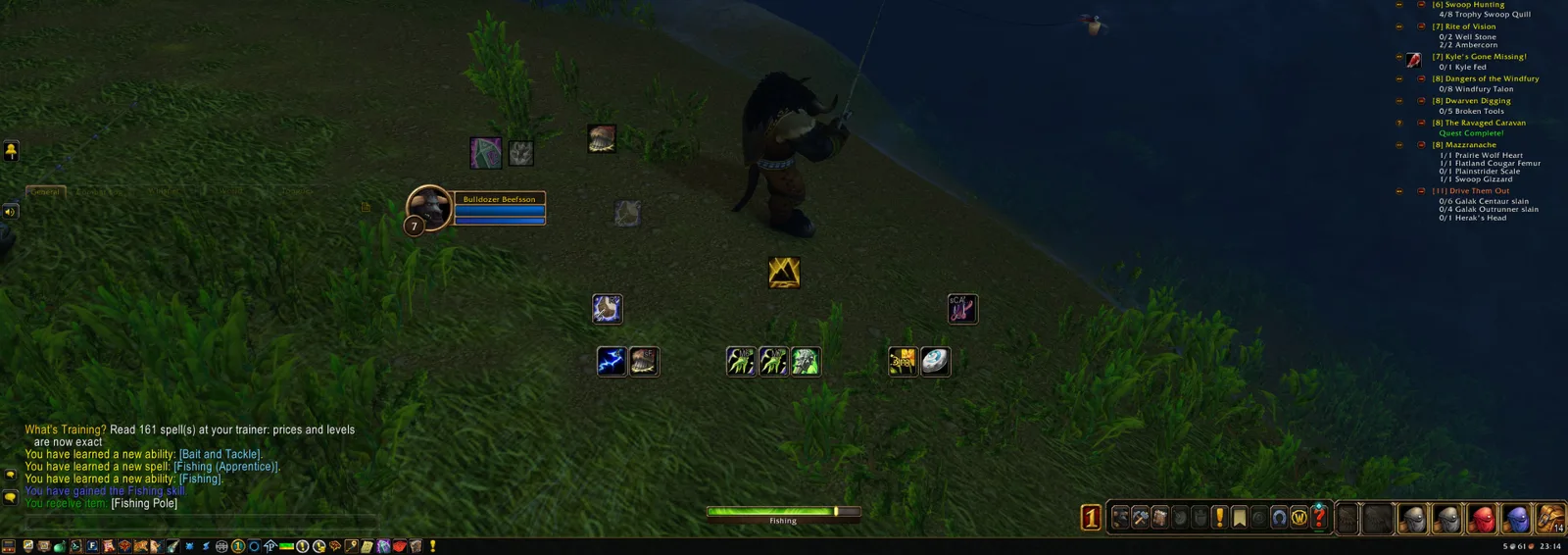
All your addons in one thin bar along an edge of the screen, like the Windows taskbar. Forever Taskbar finds the addons you have enabled and gives each one an icon. A click does what the addon's minimap button does. The gold, the volume, the mail, a calendar and the clock sit at the other end.
- A click does the same thing. Left, right and middle click go to the addon just as they would on its minimap button. Tooltips are the addon's own.
- It finds your addons by itself. LibDataBroker objects, plain minimap buttons and the addon's menu function all work. An addon with an icon and nothing to click opens its page in the game settings instead, and you can turn those icons off.
- Any edge of the screen. Bottom, top, left or right: one click in the settings or
/ftb edge left. Popups and tooltips open away from the edge, and on a side the icons run down from the top. - A tidy minimap. The minimap buttons of the icons on the bar are hidden, and one switch brings them back.
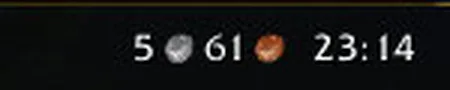
- Gold, volume and mail. Your gold, a volume button (click: a slider and a mute button for every sound channel, right click: mute all, mouse wheel: louder or quieter, and a Restart sound button for when the sound stops) and an envelope while mail waits, with the senders in its tooltip.
- Calendar and clock. A calendar icon with today's day opens the game's calendar. The clock can show seconds, and its tooltip shows the date, FPS and latency.
- The game's menu, smaller. One switch hides the game's menu and bag bars; a bags icon (free slots in its tooltip) and a menu icon with the game's windows take their place. All three are off until you turn them on.
- Moves nothing else. Your action bars stay where you put them, and their buttons stay on top of the bar.
- Arrange it. Drag an icon to move it, and Ctrl + right click takes it off the bar. Icons that do not fit go behind an arrow button.
- Your size, or out of sight. Icons from 16 to 32 pixels, the bar from 20 to 64. It can also stay tucked into its edge until the mouse reaches it.
- Its own look. Painted icons for the bags, mail, menu, calendar and volume.
Commands
| Command | What it does |
|---|---|
/ftb |
open the settings (or click the first icon on the bar) |
/ftb help |
list the commands |
/ftb show \| hide |
show or hide the bar |
/ftb edge bottom \| top \| left \| right |
put the bar on that edge of the screen |
/ftb scan |
look for icons again, and list what is on the bar and what could not go there |
/ftb minimap on \| off |
hide the minimap buttons of the icons on the bar |
/ftb autohide on \| off |
hide the bar until the mouse reaches its edge |
/ftb all on \| off |
also show addons without a button |
/ftb gold on \| off |
show your gold |
/ftb volume on \| off |
show the volume button |
/ftb mail on \| off |
show an icon while mail waits |
/ftb calendar on \| off |
show the calendar icon |
/ftb clock on \| off |
show the clock |
/ftb seconds on \| off |
show seconds on the clock |
/ftb bags on \| off |
show a bags icon |
/ftb menu on \| off |
show a menu icon with the game's windows |
/ftb gamebars on \| off |
on hides the game's menu and bag bars |
/ftb restartsound |
restart the game's sound system |
/ftb size <16-32> |
icon size in pixels |
/ftb height <20-64> |
bar height in pixels |
/ftb reset |
show all icons again in the first order |
Good to know
- Made for the Forever client (Interface 16001).
- Not everything can go on the bar: secure buttons on the minimap, data feeds with nothing to click, addons with no icon
and no action, and modules of a bigger addon.
/ftb scanlists them with the reason. - A menu that an addon anchors to its own minimap button or to the cursor opens there, not at the bar.
- On the left or top edge the bar can cover part of the chat window or the minimap; move those if they are in the way.
- If another addon also collects minimap buttons, turn that off, or its bar shows gaps.
- Settings are saved per account.
Changelog
0.4.1 current
Features
- A Restart sound button under the volume sliders (and
/ftb restartsound) restarts the game's sound system, for when the sound stops or you switched headphones.
0.4.0
Features
- The bar can sit on the top, left or right edge of the screen as well as the bottom:
/ftb edge top|left|right|bottomor the Edge buttons in the settings. Popups and tooltips open away from the edge, and on a side the gold shows one coin per line. - New painted icons for the bags, mail, menu, calendar and volume buttons. The day on the calendar icon sits in its page, in a size that follows the icon size.
Bug fixes
- The volume popup, the menu and the list of more icons open above the game's action bar art, so its gryphons no longer cover the bottom row, and the volume popup has room for the whole word Ambience.
0.3.0
Features
- An envelope next to the gold while mail waits, with the senders in its tooltip.
- The bar height has its own setting, 20 to 64 pixels, separate from the icon size.
- A calendar icon with today's day opens the game's calendar, and the clock can show seconds.
- The volume button's popup has a slider and a mute button for each sound channel: main, music, effects, ambience and dialog.
- A switch hides the game's menu and bag bars, a bags icon opens the bags with the free slots in its tooltip, and a menu icon lists the game's windows. All three are off until you turn them on.
- A volume button next to the clock. A click opens a volume slider, a right click mutes or brings the sound back, and the mouse wheel sets the volume in 5 % steps. The settings or
/ftb volume offremove it.
0.2.0
Features
- A new addon, a thin bar along the bottom of the screen with the icons of all your addons, like the Windows taskbar. A click does what the addon's minimap button does, and an addon without a button opens its settings. The minimap buttons of the icons on the bar are hidden (with a switch), nothing else on the screen moves. Drag to reorder, Ctrl + right click takes an icon off, auto-hide is an option, your gold and a clock each have a switch.
/ftbopens the settings,/ftb scanlists what is on the bar and what could not go there.
Help and feedback
Questions, bugs and ideas are welcome on the Forever Addons Discord: #help for setting it up, #bug-reports when something is broken (the addon version and the error text help a lot), #feature-requests for ideas.